
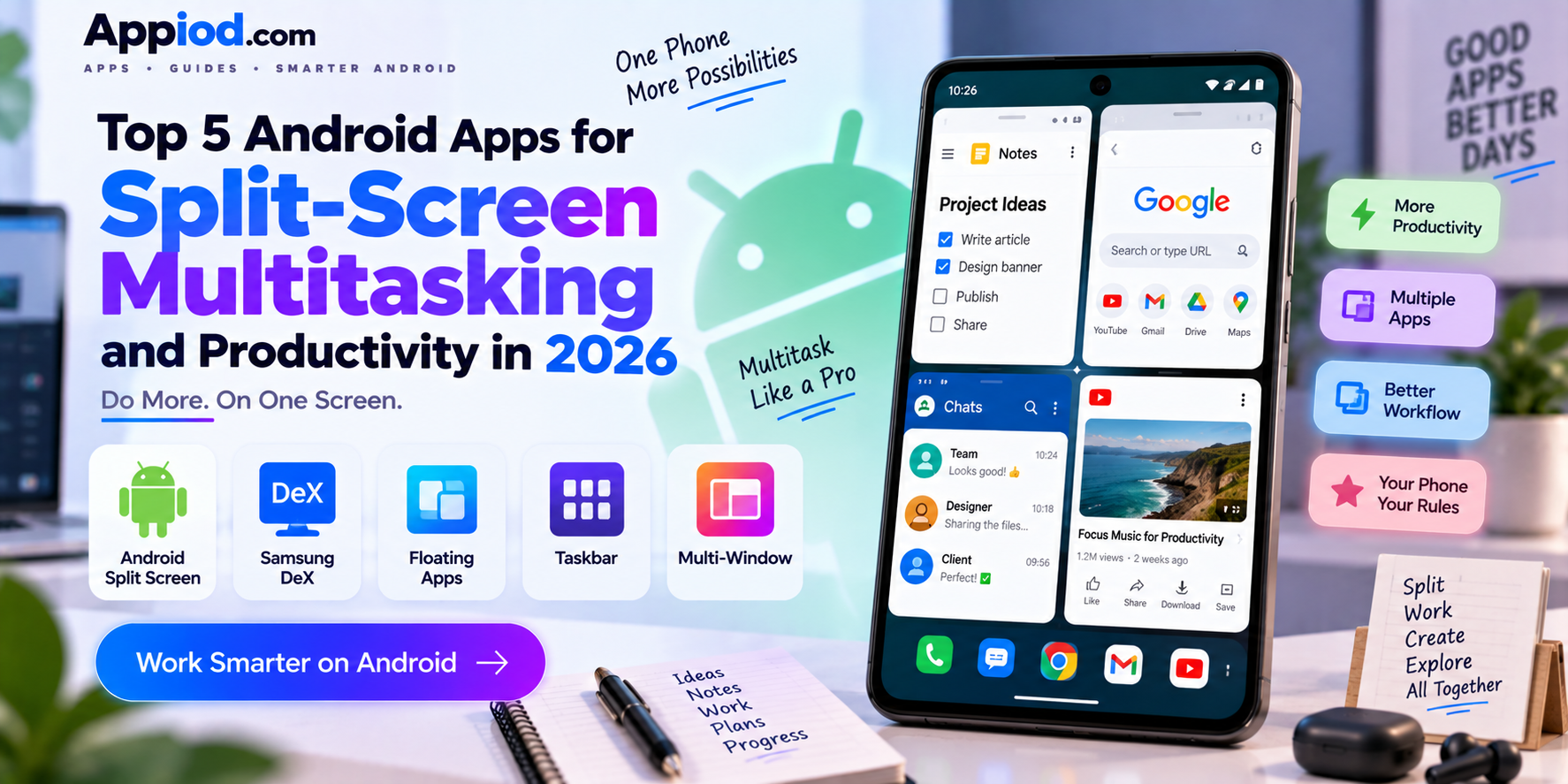
Genuine multitasking remains one of Android’s clearest, most consistently underused advantages over iOS, letting two or more apps run and interact simultaneously on the same screen rather than requiring a full switch between fully separate app contexts. Between Android’s own native split-screen and floating window features and a strong ecosystem of third-party tools extending that capability further, a phone can genuinely function as a lightweight productivity workstation for anyone willing to actually set it up. Here’s a look at what’s worth using this year.
Android Native Split Screen
Android’s built-in split-screen mode, accessible directly from the recent apps view on virtually every modern Android device, lets two apps run side by side or stacked, with a draggable divider letting users adjust how much screen space each app actually gets. It requires zero setup or third-party installation, working immediately the moment two compatible apps are opened together, and most productivity-relevant apps, browsers, messaging, notes, email, support it without any special configuration. For casual multitasking needs, checking a message while browsing, taking notes during a video call, it remains the fastest, most frictionless starting point before reaching for any additional tool.
Samsung DeX
Samsung DeX transforms a compatible Galaxy phone into a genuine desktop-like experience when connected to an external monitor, either wired or wirelessly, complete with a proper taskbar, resizable floating windows, and mouse and keyboard support for anyone who wants their phone to function as an actual lightweight computer rather than just a slightly bigger split-screen. Its resizable, freely positioned windows go considerably further than standard split-screen’s fixed division, letting users arrange three or four apps simultaneously in a layout that genuinely resembles a desktop workspace. For Galaxy owners who travel light and want real desktop-style productivity without carrying a laptop, it remains one of the most genuinely useful features exclusive to Samsung’s ecosystem.
Floating Apps (Multitasking)
Floating Apps turns compatible applications into resizable, movable floating windows that overlay on top of whatever else is currently running, functioning closer to how a desktop operating system handles multiple open windows than Android’s native split-screen division. This approach lets users keep a reference app, a calculator, a translator, a quick note, genuinely accessible and visible while working in a different full-screen app underneath, rather than committing half the screen to a fixed split. Its particular strength lies in workflows involving a small utility app that needs to stay visible alongside a primary task, rather than two apps that both genuinely need equal screen real estate.
Taskbar

Taskbar brings a genuine, persistent desktop-style taskbar to Android, letting users pin frequently used apps for one-tap access and quickly switch or launch apps into floating or split-screen windows without needing to navigate through Android’s standard recent apps view every time. Its persistent, always-visible design makes rapid app-switching during a genuinely multitasking-heavy session considerably faster than repeatedly opening the recent apps overview, closer to how switching windows works on a traditional desktop. For power users who multitask frequently throughout the day and want faster, more direct access to their most-used apps, it removes real friction that Android’s native app-switching still carries.
Multi-Window (Parallel Space Multi-Task)
Multi-Window tools built specifically for running more than two apps simultaneously address a genuine gap in Android’s native split-screen, which typically caps at two apps in a fixed division, by allowing a third or fourth app to run in a smaller, resizable window layered on top. This matters specifically for workflows that genuinely need more than two apps visible at once, referencing a document while messaging a colleague and checking a calendar, for instance, rather than being limited to Android’s standard two-app split. For users whose multitasking needs regularly exceed what a simple two-app split accommodates, this category of tool fills a real, specific gap in Android’s built-in capability.
Choosing between these five comes down mostly to how demanding a specific multitasking workflow actually is. Casual users who occasionally want two apps visible at once should rely entirely on Android’s native split-screen, since it requires zero setup and works immediately without any additional installation. Galaxy owners specifically wanting genuine desktop-style productivity when connected to a monitor should make full use of Samsung DeX rather than any third-party alternative, and users who need a small utility app visible alongside a primary task should look to Floating Apps rather than committing to a fixed split. Power users multitasking heavily throughout the day should add Taskbar for faster app access, and anyone regularly needing more than two apps visible simultaneously should explore a dedicated multi-window tool beyond Android’s standard two-app limit.
Conclusion
Android’s genuine multitasking capability remains one of its clearest practical advantages, and 2026’s combination of mature native features and specialized third-party tools makes it entirely possible to turn a phone into a real, functional productivity tool rather than a single-app-at-a-time device. Whichever of these five ends up fitting a specific workflow, the underlying payoff remains the same: getting more done without constantly switching fully away from one task just to glance at another.