
Why Benchmarking Your AI Model Actually Matters
Choosing the wrong AI model for your project is more costly than most people realise. A model that looks great on a public leaderboard may perform poorly on your specific task. A premium reasoning model may be entirely overkill – and three times the price – compared to a lighter alternative that handles your use case just as well.
OpenMark.ai solves this by letting anyone – developers, product managers, entrepreneurs, and teams – run structured benchmarks across 100+ AI models using their own real tasks. No code. No API key setup. No technical background required.
This guide walks you through the entire process from sign-up to reading your first results, step by step
Step 1 – Create Your Free Account
Head over to openmark.ai and sign up using Google Sign-In. The process takes under a minute. You land directly in the main app – no lengthy onboarding survey, no credit card required to get started.
Once inside, you’ll notice three tabs at the top: Editor, Benchmark, and Results. Everything flows left to right – you build in the Editor, run in Benchmark, and analyse in Results. That’s the entire workflow.
Pro Tip: Hit the Quick Tour option from the menu on your first login. It takes about two minutes and gives you a solid mental model of how the platform works before you dive in
Step 2 – Create Your First Benchmark Task
Click into the Editor tab. This is where you define what you want to test. You have three modes to choose from:
- Simple Mode (recommended for beginners) – Describe your task in plain English. The AI generates test cases, expected outputs, and scoring config automatically.
- Advanced Mode – Build your tests manually using structured forms. Great for teams with defined evaluation criteria.
- Manual Mode – Write YAML directly for full technical control.
For your first benchmark, stick with Simple Mode. In the description box, type something like:
“Classify customer support emails into one of three categories: Billing, Technical Issue, or General Enquiry.”
Click Generate, and within seconds you’ll have a complete benchmark task – test prompts, expected answers, and a scoring setup – ready to run.
Once you’re happy with the preview, click Save. Your task now appears in the task rail on the left.
Important: You must save the task before you can benchmark it. Generated tasks sit in the preview until saved
Step 3 – Select Your AI Models
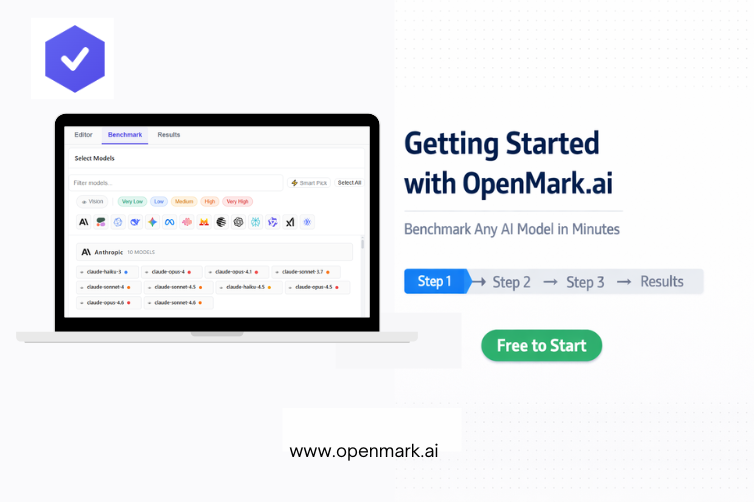
Switch to the Benchmark tab. Here you choose which models to test against your task.
If you’re not sure where to start, click Smart Pick. This automatically selects around 8 models from different providers and pricing tiers, giving you a balanced cross-section without any manual curation.
Want more control? Use the filters to narrow by:
- Capability – Vision, Tool Use, Standard
- Pricing Tier – from Very Low to Very High
- Provider – toggle specific AI companies on or off
Right-clicking any model chip shows full details: pricing per token, context window, capabilities, and latency data. This is especially useful when you’re trying to balance performance against budget
Step 4 – Configure and Run Your Benchmark
Before launching, set up your run configuration. The key settings to know:
Stability Runs – How many times each test repeats. Higher values give you a more reliable consistency score. Start with the default for your first run.
Find Optimal Temperature – Turn this on if you’re unsure which temperature setting works best for your task. OpenMark tests multiple values automatically and flags the winner.
Max Tokens – Sets the maximum response length. Keep this reasonable to control costs on your first test.
Once configured, click Start Benchmark. A progress panel shows you live status as each model processes your tests. Most runs complete within a few minutes.
Step 5 – Read and Act on Your Results
When the benchmark finishes, head to the Results tab. You’ll see a sortable table with one row per model. The most important columns to focus on first:
- Score – Overall accuracy. Higher is better.
- Stability – Consistency across runs. Lower variance is better.
- Cost* – What each run actually cost, calculated from real token usage.
- Acc/$ – Accuracy per dollar. The single best metric for finding cost-efficient models.
Click any row to drill into the full breakdown – every test case, the exact prompt sent, and the model’s actual response. If a model failed a test, this view tells you exactly why.
Use Export (CSV, JSON, or plain text) to share results with your team, or hit Share to generate a shareable results image in one click
You’re Ready to Benchmark Like a Pro
Getting started with OpenMark.ai takes less time than most people expect, and the clarity it brings to AI model decisions is immediate. Whether you’re a solo developer choosing between APIs, a product team evaluating a model switch, or a business owner trying to understand which AI tool actually fits your workflow – this platform gives you the objective data to decide with confidence.
The free tier is a genuinely capable starting point. Create your account, run your first benchmark, and let the data guide your next AI decision.
→ Get Started Free on OpenMark.ai – No Credit Card Required